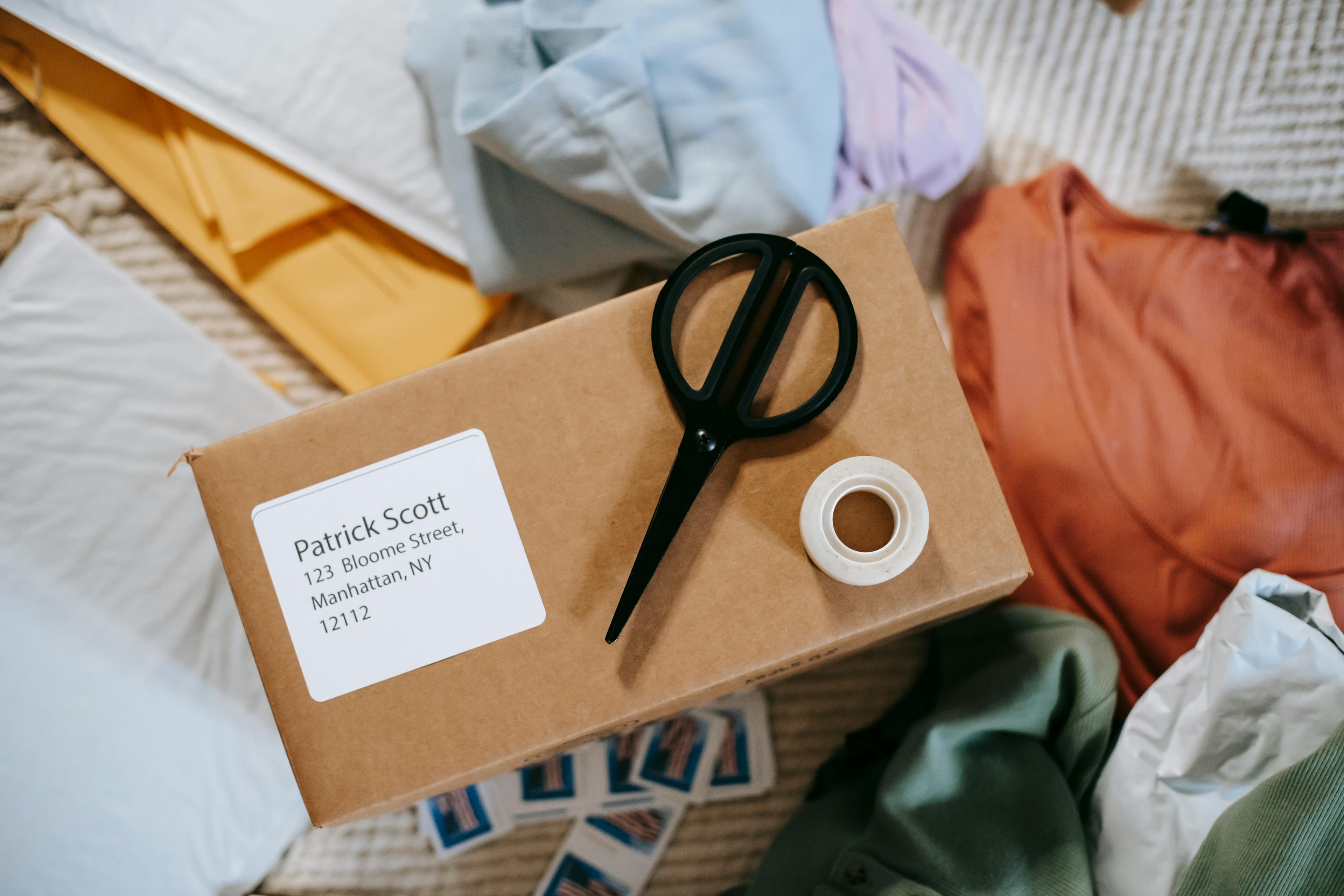
Frequent and occasional shippers alike can ensure efficient shipping with UPS shipping labels generated accurately. A shipping label is a package’s primary identifier, so it’s essential that it contains accurate information to facilitate fast, reliable delivery and reduce the risk of delays or returns. We’ll help you through the steps on how to create and print UPS shipping labels online or from a UPS retail location.
This guide will also discuss available printing options, how UPS handles returns, and tips to avoid common shipping issues.
Why Accurate UPS Shipping Labels Matter
Accuracy of shipping labels is crucial to ensuring reliable delivery and smooth UPS return services. Even small mistakes can lead to missed deliveries, added costs, or unhappy customers.
Supporting fast and reliable delivery. Every detail on a UPS shipping label, from the delivery address to package weight, guides the package through the UPS network. Incorrect or missing information can slow down transit or lead to failed delivery.
Preventing delays and delivery errors. Clear, accurate labels help ensure packages arrive at the correct destination without unnecessary stops. When labels are poorly or incorrectly printed, packages tend to get lost and additional fees may be incurred.
Efficient delivery starts from generating accurate shipping labels. Whether you’re sending a new order or handling a UPS return, make sure you have complete and accurate information for your package.
How to Create a UPS Shipping Label
Creating a UPS shipping label is a straightforward process for both outbound shipments and returns, local or international. You can generate a label from any device connected to the internet in just a few steps:
At the top of UPS.com, select ‘Create a Shipment’ from the Shipping tab.
Enter your name and address in the ‘Ship From’ section.
In the ‘Ship To’ section, enter the name and address of the recipient.
Provide the requested parcel information, then select the service options that best match your delivery needs.
Review the details to ensure everything’s correct. Then, choose your preferred payment method and print your label.
A UPS shipping label requires the sender’s complete name, address, and contact information; the recipient’s complete name, address, and contact information; and the package contents and weight. You can generate a shipping label from a computer, tablet, or mobile phone.
Once the label is created, print it and securely attach it to the package where the barcode can be scanned easily during transit. After that, your package is ready for pickup or drop-off.
Printing UPS Shipping Labels at Home
Printing UPS shipping labels at home or from your office is a convenient and cost-effective option for many shippers. You can generate UPS labels directly from the UPS website or through e-commerce platforms such as Shopify or Amazon. To create a shipment, make sure your device meets the following system requirements for desktop or mobile OS and browser settings.
Most inkjet and laser printers that support standard label sizes or full 8.5 x 11-inch paper work well for UPS labels. You may have to configure your printer settings to the proper scale and resolution so barcodes and addresses remain clear and can be scanned without any issues. Proper printer setup ensures professional-quality labels and smooth shipping.
Printing UPS Return Labels at a UPS Location
If you don’t have access to a printer, you can go to any UPS location to print labels. UPS Stores and access points are widely available and equipped to handle label printing.
Simply visit a nearby UPS location, provide all necessary shipping information, and the staff will print the label for you.Printing labels in-store is especially helpful for those unfamiliar with home printing or who want to avoid technical issues. UPS staff can assist and help ensure the label is formatted correctly and includes all required details.
UPS Return Services and Guidelines
With UPS Return Services, you can gain convenient access to pre-printed labels, electronic labels, label-free returns, and driver pickups. Key guidelines for returns include proper boxing, sealing, weight/size compliance, and selecting the right return method for a smooth process.
UPS Return Service Options
A UPS Return Label is necessary when a package recipient needs to send an item back to the sender (usually a seller or company) for an exchange, refund, or warranty. The Return Label contains crucial tracking and address info and is provided by the shipper. Below are the return options offered by UPS:
UPS Print Return Label. The shipper includes a printed label with the original package, allowing the recipient to simply apply it and drop off the package.
UPS Electronic Return Label. The shipper emails a label directly to the recipient, who prints and attaches it.
UPS Returns Plus (Driver Pickup). A UPS driver brings the label and picks up the package from the customer's door.
Label-Free Returns. The customer brings the item (pre-boxed) to a UPS Access Point, receives a code, and the staff prints the label.
The UPS Store Services. Offers package drop-off, packing services (even with no box or label), and group shipping.
General Packaging Guidelines
When returning a package, you must follow UPS’ packaging requirements for a safe and successful shipment. Here are important things to keep in mind:
Use a sturdy and durable box.
Wrap the item separately before placing it in the box; use cushioning material, if necessary.
Use strong nylon or plastic tape, at least 2 inches wide; don’t use duct tape.
Completely remove or cover any old shipping labels.
Know your package’s dimensions and weight.
Check your return method; attach the Return Label properly, or generate a code for a label-free return.
Once packaging is done, locate the nearest UPS Store or Access Point or schedule a pickup at your location. Keep your tracking receipt for proof of drop-off.
Best Practices for Label Printing and Placement
Proper label printing and placement helps facilitate efficient delivery. For businesses that ship frequently, investing in a UPS label printer may be the ideal solution; UPS in-store services also offer a reliable alternative option.
A dedicated UPS label printer offers flexibility and long-term savings for high-volume shippers. It allows you to print labels anytime without leaving your workspace. In contrast, in-store printing may be more cost-effective for small or occasional shippers. It eliminates upfront equipment costs and ongoing maintenance.
If you’re using a home/office printer, make sure your settings match UPS label specifications so your label is aligned and scaled correctly and printed clearly. UPS labels work best with laser, inkjet, or thermal printers.
UPS also integrates seamlessly with many popular e-commerce platforms, so businesses can automate shipping label creation and customers can easily manage returns.
Once printed, attach the label to the largest, flattest surface of the package; the top or side is typically the best placement. Avoid edges, seams, or curved surfaces, which can damage the label or interfere with scanning.